
How do I reset my router to factory settings without calling my ISP? Maybe the admin password is lost, the settings are a mess, or you’re selling it — whatever the reason, you don’t need your internet provider for this. A factory reset takes about five minutes, requires no technical support, and works on every router ever made. Here’s exactly how.
One critical distinction first: restarting (unplugging for 30 seconds) just reboots the router — settings stay. Resetting wipes everything back to out-of-box state: your Wi-Fi name, password, parental controls, port forwards, all of it. Make sure that’s what you want before you press the button.
The 5-Minute Factory Reset (Works on Every Router)
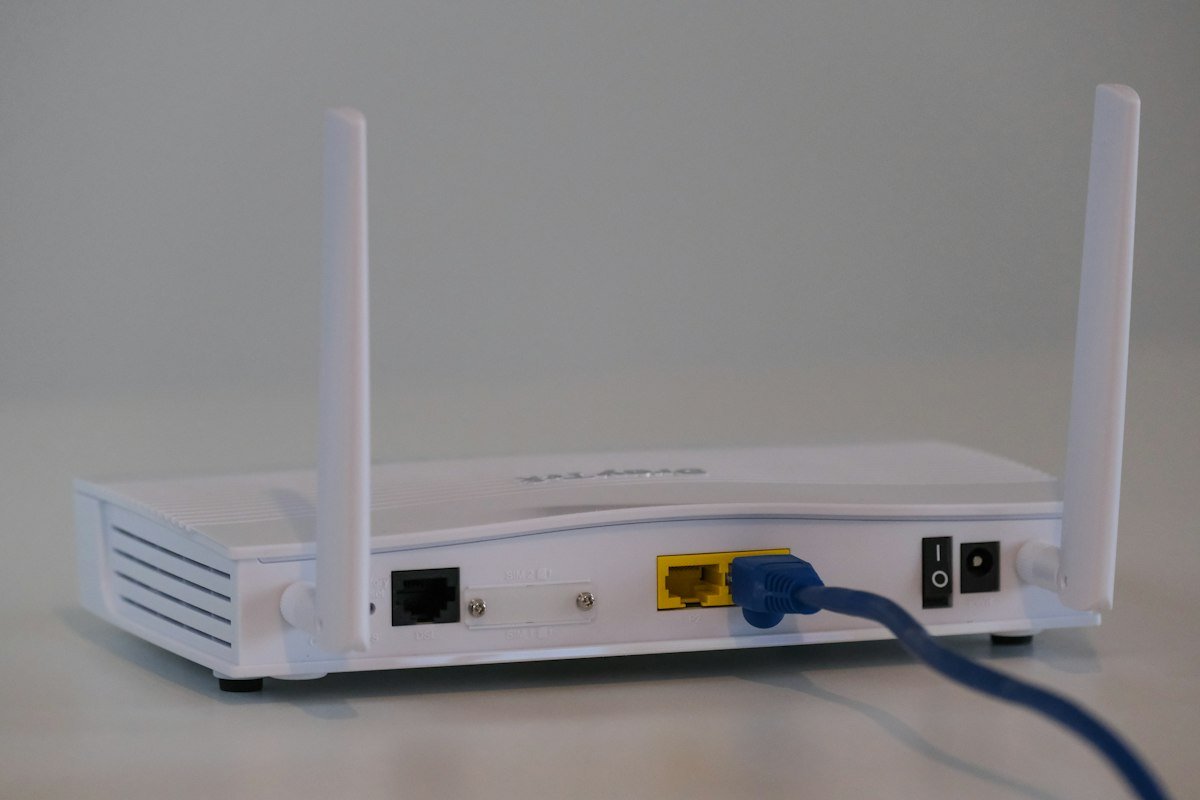
- Find the reset button: a tiny pinhole on the back or bottom labeled ‘Reset.’ You’ll need a paperclip or SIM tool.
- With the router powered on, press and hold the reset button for 10-30 seconds (check your manual — most need 10, some need a full 30). Watch the lights: they’ll blink, go out, and come back — that’s the reset happening.
- Release and wait 2-3 minutes for the router to fully reboot and stabilize.
- Reconnect: your Wi-Fi network name is back to the factory default (usually on a sticker on the router, like ‘NETGEAR-5G’ with a default password).
- Log into the admin panel (usually 192.168.1.1 or 192.168.0.1 in a browser; default credentials are on the sticker — often admin/password) and set it up fresh: new Wi-Fi name, strong password, firmware update.
Before You Reset: The 2-Minute Prep That Saves Hours
A reset is painless if you prepare; miserable if you don’t. First, photograph or screenshot your current settings if you can still log in — especially ISP login credentials (PPPoE username/password, if your connection uses them — without these, your internet won’t come back until you get them from the ISP, which defeats the ‘without calling’ goal). Second, note your Wi-Fi name and password, because every device in the house will need reconnecting. Third, check for a firmware update option — sometimes ‘acting weird’ is fixed by an update, no reset needed.
If you rent your router from the ISP (the gateway they gave you), the reset process is identical — the button works the same. Just know the default Wi-Fi credentials are on the ISP’s sticker, and any ISP-specific settings usually re-provision automatically. You still don’t need to call them.
How Do I Reset My Router to Factory Settings Without Calling My ISP? After the Reset
Do these five things before you consider the job done:
- Change the admin password from the default. ‘admin/password’ is the first thing every bot on the internet tries.
- Set a strong Wi-Fi password (WPA2 or WPA3 — never leave it open, never use WEP).
- Update the firmware to the latest version — check the admin panel’s update section.
- Re-create your network thoughtfully: this is a great moment to set up a separate guest Wi-Fi network and reconsider your Wi-Fi channels for evening interference.
- Reconnect devices one room at a time. If something won’t connect, forget the old network on that device first — devices sometimes cling to cached credentials for the old setup.
When a Reset Won't Help (Don't Bother)
- Slow speeds at peak hours: that’s ISP congestion, not router settings. A reset changes nothing.
- Dead zones in far rooms: that’s coverage — you need better placement or a mesh system, not a fresh config.
- The router is 6+ years old and struggling: no reset fixes aging hardware. Budget routers from 2018 choke on 2026 device counts.
- Internet light is red/off after reset: that’s the line to your house or the ISP’s equipment — now you actually do need to call them. (Sorry.)
Reset vs. Restart vs. Update: Which Do You Actually Need?
People reach for the factory reset too quickly — it’s the most destructive option, so make sure it’s the right one. Restart (unplug 30 seconds): fixes temporary glitches, stuck processes, memory leaks. Do this first for ‘internet is acting weird today.’ It fixes the majority of transient issues and costs nothing. Firmware update: fixes bugs, security holes, and performance issues in the router’s software. Do this second for persistent weirdness — check the admin panel’s update section before resetting anything.
Factory reset: the right call when you’ve lost the admin password, the settings are hopelessly tangled (years of port forwards and custom rules nobody remembers), you’re selling or giving away the router, or support specifically asks for it as a diagnostic step. It’s also the fix for corrupted configurations that survive restarts and updates — rare, but real. What it won’t fix: slow ISP speeds, dead zones, hardware failure, or congestion. Resetting the router because Netflix buffers at 8 PM is like repainting a car with a flat tire — technically doing something, solving nothing.
My suggested escalation ladder for any router problem: restart → check for firmware update → check the actual bottleneck (wired speed test, per our testing guide) → factory reset → replace the router (if 5+ years old) → call the ISP (if the problem is the line). Most people jump from step 1 to step 5 and wonder why nothing improved. Work the ladder.
If your router’s admin panel looks nothing like the steps above, the manufacturer’s support site has model-specific reset instructions with pictures — Netgear’s router support pages, for example, cover every model they’ve shipped. And if the reset button itself seems dead (no light changes after a full 30-second hold), the router likely has deeper hardware trouble — at that point, replacement beats further troubleshooting.
The Bottom Line
How do you reset your router to factory settings without calling your ISP? Paperclip in the reset pinhole, hold 10-30 seconds with power on, wait for reboot, then set it up fresh with a new admin password and Wi-Fi credentials. Prep by saving your ISP login details first, and don’t expect a reset to fix congestion, dead zones, or dying hardware. Five minutes, no hold music required.